Posts Tagged ‘monitoring’

Q&A With Marcel Lebrun – Part One: Radian6′s New Features

Earlier this week I posted an analysis of new features that Radian6, a social media monitoring company, released over the last weekend. That same day Marcel Lebrun, CEO of Radian6, left a very lengthy but equally helpful comment on my post.

As a follow-up to that post, I had a chance to ask Marcel a few questions about the new features about Radian6 in general and about their plans on the future. The interview was quite long, so I’m splitting it into two posts.

Today: looking at Radian6′s new features.

Q: You released a lot of new features last weekend. They affect a lot of different areas of Radian6; which ones are you most excited about?

A: All of it!!  There are so many new things we can do with this platform now.   I am most excited about the power of these new features when used in combination to help companies (and their agencies) collaborate & scale their listening & engagement.   It really enables a company to effectively setup their “listening grid” in a way that can engage many parts of the company and facilitate easy collaboration amongst employees (and their consultants, agency partners, etc.). 

A lot of practical testing went into how we integrated workflow (conversation sidebar) into as-it-happens emails & IM and then how we enable this data to be sliced & diced in the dashboard.    

Even for a small company like us, we have become so dependent on this tool to coordinate & manage our own listening & engagement that we know it will be a hit.  Without it we would likely need 2-3 more headcount and I know we would have coordination issues (multiple people responding, stuff falling through the cracks, wasted/duplicated effort, lack of measurement, etc.).

Q: Your new “conversation sidebar” significantly enhances the workflow functionality within Radian6. Do you have any plans to enhance that further?

A: Yes, the conversation sidebar enhances workflow, and it also significantly enhances the ability to have internal conversations & collaboration around listening & engagement.  It enables what I like to call a “purpose driven” social network inside your company or between agency/client (the purpose being listening & engaging with customers). 

In terms of further enhancements, we are really looking to see what feedback we get from our customers on the sidebar and we will keep making it better.

Q: Any plans to extend IM functionality to Live Messenger?

A: Yes, we are looking into adding Live Messenger support as well.

Q: How do you see people using source tagging [a new feature] most effectively?

A: Source tagging is extremely powerful.  I like to think of it like the “calling line ID” of the social web.  Let’s say you see a mention of your brand, and one employee tags this person with “national account” and “customer ID#1234”.  In the future, every time this customer talks about you online, the content will carry these tags so that the information is available to everyone in your organization.  This saves effort and provides for smarter engagement.  Not only that, but you can setup different listening alerts tied to the tags. 

In this example, someone in the company could setup an alert to listen only to conversations/mentions from “national accounts”.   In the future we will be adding rules based on source tags (and we have the start of that today with tag based alerting).

Another powerful use of source tags is segmentation & measurement.  Imagine being able to understand the conversation pattern of only the particular customers who bought your new product?  How many of these existing customers first asked their network about your product prior to buying?  How long before the purchase and which ones did you engage with directly (versus others)?  

Use source tags in combination with our new segmenting features and you can segment by tag, then sub-segment by engagement type and quickly get answers to these questions.  

We have a post up (yesterday) which talks a bit more about source tags: http://www.radian6.com/blog/141/source-tagging-the-caller-id-of-the-social-web

As an example, I added the tag “Thornley Fallis” for you [Dave: Marcel added this tag to his search for posts mentioning Radian6].  So here is a chart I generated where I picked March 2, filtered for your tag only and then segmenting by media type.  I can quickly see that you had 1 post, 2 tweets and 11 comments on topic (we count both comments and trackbacks since they appear on your blog). 

Overall we had 125 Radian6 mentions on March 2 and you generated 11% of that.  I also know that about 32% of the mentions came from current customers and 52% from people who are not yet customers – interesting.  I can now easily analyze the conversations from customers vs non customers to see patterns.

Thanks to Marcel for taking the time to share his thoughts. 

Check back in tomorrow for the second half of the interview, in which Marcel speaks about trends in social media monitoring, tells us where he sees Radian6 in the marketplace, and gives us a sneak preview of an upcoming feature.

Test-Driving The New Radian6 Features

Radian6 really got its groove on this weekend, with a whole raft of new changes that close the gap with its competition in some areas and set it ahead in others. I’d had a heads-up that some of them were on the way, but this weekend was the first time I’d had a chance to play around with them. 

 I use Radian6 pretty much daily and have fed a number of thoughts back to the team there, so I was excited to see the announcement of this latest round of changes. Here are the major changes from this release, along with my take on them.

Real-time notifications

One of my big peeves with Radian6 has always been that you could only get notifications of new search results once per day. In a constantly-evolving online environment, once per day simply doesn’t cut it.

With the new enhancements, this issue is removed; replaced by near real-time emails and/or IMs – available through the “configuration” tab. The IM function isn’t compatible with Live Messenger so isn’t much use to me unfortunately (we use MSN at work), but is a nice addition.

This new functionality is only available for new topic alerts, which may be a little irritating, but it’s more than worth taking the time to re-create your alerts so you can be notified more frequently about new posts.

For an example of how effective the new alerts are, about an hour after posting the images from this post to Flickr I received a message from Marcel Lebrun, CEO of Radian6, whose alerts had picked-up my images and who smelled a blog post in the works. Marcel also pointed out another neat feature of these “as-it-happens” alerts:

“When you click on a tweet via As-it-happens alerts, you get to see [a] special page with tweet, bio, recent tweets to/from and can engage.”

I’d missed this until that point – you can now log-in to your Twitter account from the conversation sidebar (see below) and engage with people from there.

“Conversation sidebar”

A little while back Radian6 added workflow features to their service – the ability to assign posts to others, allocate a status and classify posts, and add notes and tags. Very useful, but a little clunky.

With the introduction of the conversation sidebar, Radian6 has taken its first steps towards a workflow system that I can see us using.

The conversation sidebar appears on the left of your browser when you click a link in a notification email, an IM message or your “river of news” widget, while the post you’ve selected appears on the right. From this sidebar you can assign posts to other members of your team, identify your engagement with the post and any future action, assign sentiment and classify the conversation (leads, complaints, compliments, etc).

The “Add to the Conversation” field is a little misleading – the field simply adds a ‘note’ to the post in Radian6. With a title like that, I would expect it to post a comment to the post in question.

This is a significant addition to the Radian6 workflow which, despite its clear usefulness for groups, has been underused so far in my view. The next piece to this particular puzzle is real-time emails when you assign a post to someone, so they don’t have to continually log-in to Radian6 to find their newly-assigned posts. 

As the announcement to customers stated, “The Conversation Sidebar will help enterprise teams scale their engagement, coordinate their community outreach, and track and analyze their external conversations.”

Source Tags

You can now tag not only posts, but also sources. I can see this being useful for categorizing sources, flagging that you’ve previously responded to them, noting where they’re from etc.

The source tagging option is available from the workflow in the “river of news,” and from the conversation sidebar (you can see it in the image above). However, this option does not seem to be available for forums, which seems odd. Not sure why that is – while you might not want to tag things as specifically, it would still be useful.

Comments

This is a big deal for me: the addition of comments to Radian6′s coverage. This was a big gap between Radian6 and its competitors previously, and a big time suck for those of us monitoring online. Pulling blog comments into Radian6, while still allowing the option to exclude them from volume analyses, is very powerful.

Why does it matter so much? As I outlined in my PodCamp Toronto presentation recently, let’s say a car enthusiast writes about GM‘s latest car. If you were Scott Monty at Ford (note: this is hypothetical – I have no idea whether Ford uses Radian6 or not), that would likely not show up in your search results. If, however,  the comments took a swerve and the conversation focus switched to Ford’s latest offering, that still wouldn’t have shown up… until now, anyway. Now that comments are indexed, the comments referencing Ford would now show up in Scott’s dashboard, and he could decide whether or not to engage.

Interestingly enough, the comment indexing is provided by BackType, about which I’ve written in the past. Christopher Golda of BackType was actually in the crowd during the presentation I mentioned above.

One important point: if your profile is close to the boundary between different pricing levels, note that the addition of comments will drive up your montly search volumes and have a knock-on effect on pricing.

New metrics

The new rollout gives Radian6 users a couple of new metrics to use when looking at influence.

While users have always been able to see the number of “on-topic” inbound links (though how they decide what is “on topic” is beyond me) to posts in their search results. The new release adds the total number of inbound links (according to Google) to the analysis widgets. Very handy, and very easy to spot.

The other new metric is perhaps more useful as it’s the first thing, beyond forum views, to track traffic numbers in Radian6. The new release adds Compete.com website traffic statistics into the influencer widget.

However, there are a couple of “buts” here. The first is that this data isn’t free – it runs to $50 per month, per topic profile. The other “but” is that, as with many services, Compete is great but for sites with smaller traffic volumes (like mine), you get “rough estimates.” It also focuses on US visitors. Still, Compete is the leader in this kind of analysis, so this is another step in the right direction.

Content segmentation and analysis

You can now segment your analytics even more effectively, with break-downs available on:

  • Language
  • Region
  • Media type
  • Engagement level
  • Source tag
  • Post tag 

The biggest develop in this segmentation for me, though, is the ability to segment by sentiment.

While, in the past, you could allocate sentiment to posts, until now you couldn’t graph it so it was essentially useless. I’m a little disappointed to only see positive/neutral/negative as options and not the nuances (the “somewhat positive” and “somewhat negative” posts are grouped as “other”) but, again, it’s a good step in the right direction.

You can also sort your analysis widgets by numerous metrics:

  •     Number of posts
  •     Comment count
  •     View count
  •     Vote count
  •     Twitter followers
  •     On-topic inbound links
  •     Total inbound links
  •     Number of unique sources

As the announcement notes, “Want to know which keywords or topics generate the most commenting activity? Which blog post generated the most Twitter impressions? Now you can see the buzz around your topics at a glance.”

Conclusion

This is an excellent set of new features for Radian6. I have quibbles with a few things here and there, and the workflow in particular is a work in progress, but the product is ever-evolving and this is a strong release that adds significantly to Radian6′s usefulness.

The most important features, in order of importance (from my perspective):

  • The addition of comments;
  • Real-time alerts;
  • Graphing sentiment;
  • Workflow improvement via the conversation sidebar (would be higher with the addition of email alerts).

What’s Your Favourite Tool For Monitoring Conversations?

I’ve been thinking a lot about social media monitoring recently. I’m presenting on the topic at a couple of upcoming conferences, and I’m spending an increasing amount of time working in this area in my day job.

623562_whispered_secret_1As conversations become increasingly fragmented – blogs and discussion boards/forums are no longer the only source of discussion out there – they’re becoming increasingly more complex to monitor.

What’s more, there are thousands upon thousands of conversations happening, in real-time, online. The sheer quantity is almost overwhelming and it’s only going up.

So what do we do?

There are plenty of tools out there that let us monitor online conversations…

…the free ones, for example…

…and the professional ones, for example…

The search and monitoring tools out there are almost as diverse as the media we’re monitoring, and I’m seeing increasing interest from organizations in using these tools to listen.

So, I have a question for you:

What is your favourite monitoring tool (or tools)?
What have you found to be the most comprehensive/easiest to use/most logical/most cost effective?

What services might the rest of us have missed?

(If you want to hear more about social media monitoring, I’m presenting a workshop on the topic as part of a "Social Media Master Class" at The Canadian Institute’s Social Media conference in December and I’m doing a session on the topic at PodCamp Toronto 2009.)

How To Set Up A Simple Online Monitoring System

Whispered secretBefore your organization launches a blog, before you start playing with Facebook, before you even think about Twitter, you should be listening to what people are saying about you.

I did this recently for my last employer in preparation for a high-profile event and received a lot of questions afterwards about how I went about it. My answer: it’s not that hard.

In this post I’ll walk you through three simple steps to setting up a basic system to monitor your online world. Note: There are professional tools available to do all of this and more – Radian6 for example – which you may want to check out if you have the budget for it.

You’ll need six free tools (+1 more for a bonus) to mimic the setup I used:

There are three simple steps to setting-up your system (plus the bonus if you choose):

  1. Define your keywords
  2. Create your searches
  3. Plug the results into your RSS reader
  4. Bonus: Filter your searches through AideRSS

Step 1: Define your keywords

Before you even switch on your computer, think about the different words and phrases you want to track. These could be brands, executives, spokespeople, competitors, stakeholders, products, programs or whatever else you want to monitor.

Some of your terms may initially be a little broad; you may want to narrow them down by adding creating ‘boolean’ queries, for example:

  • Executive name AND company name
  • Competitor name OR competitor product name

Step 2: Create your searches

(Note: this step happens at the same time as step 3 – as you create each of your searches you’ll plug them into your RSS reader.)

I used five different search tools for my system:

  • Google News for mainstream news coverage
  • Google Blogsearch, Technorati and Blogpulse for blog searches
  • Summize for Twitter coverage (Tweetscan would also suffice)

Plug each of your keywords and phrases into each of these search engines.

A couple of pointers:

  • Google lets you use parentheses to structure your search, so you could do:
    (brand name OR product name OR executive name) AND company name
  • Use the advanced searches in Technorati and Blogpulse to give yourself more options

You don’t need to use all three blog search tools – I used all three to make sure nothing slipped through the cracks. If, however, you want to just use one tool, use Google Blogsearch as the ability to use parentheses in your searches can let you create one query for all your searches – much more manageable if you decide to use the bonus step later.

Step 3: Plug the results into your RSS reader

Each of the search engines I’ve mentioned here provides search results in RSS form. As you run the queries for each search term you came up with, click the “RSS” or “Subscribe” links on the results page and subscribe to the results in your RSS reader of choice.

Subscribe link in Technorati

 Subscribe link in Google Blogsearch
Note: Blogpulse can be a little flaky – you may need to try importing feeds from there a few times before it will work.

Bonus – Step 4: Filter your searches through AideRSS

AideRSS is a free online tool that helps you to filter through your RSS feeds and filter out “the noise,” leaving you able to focus on the important posts.

You may not need to use this if you don’t anticipate a lot of coverage. If, however, you expect to find a lot of online conversations about your organization, this may be worth exploring. It does take a little time to set up but it’s very easy to do so. What’s more, AideRSS’ technical support is superb – very responsive and helpful.

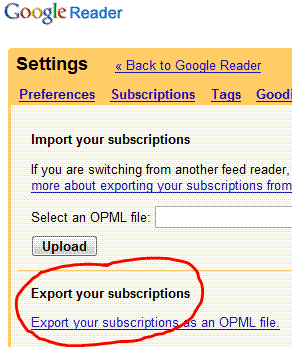
To run all of your searches through AideRSS, use your RSS reader to export an OPML file of your feeds

Google Reader - Export your subscriptions

Then go to AideRSS.com and create a free account. Go to the ‘Settings’ tab and import your OPML file. Once the site has imported all of your feeds (this may take some time) you can set the level of filtering you want for each of them.

The last step is then to subscribe to the RSS feed that AideRSS creates for you, et voila! You have an RSS feed of your coverage, filtered for you!

(You can then unsubscribe from your original searches if you like, or archive them for future reference)

Suggestions?

I used this approach to set up a quick and dirty monitoring service for a high-profile issue and provided an update & analysis every 90 minutes to executives. Still, this isn’t a comprehensive solution and it certainly doesn’t offer the functionality of a professional product. However, for those just starting out or those without the budget for a paid solution, it should suffice.

What do you think about this approach? What would you change here?
